Convert any OneDrive share URL into a direct download link, avoid the embed viewer, and share with students or clients in one click.
Why bother with a direct link?
OneDrive share links often open in a Microsoft viewer that adds a download button and sometimes blocks large files. A direct download URL skips that extra page so the file starts transferring immediately. It's perfect for handing off slide decks, zip files, or app builds to non-technical users who just need the file.
Quick path: use our OneDrive generator
- In OneDrive, click Share - set access to Anyone with the link.
- Copy the share link.
- Open DriveDirect Gen, paste, and hit Generate.
- Copy the direct download URL. Tap the QR icon if you want a scannable code.
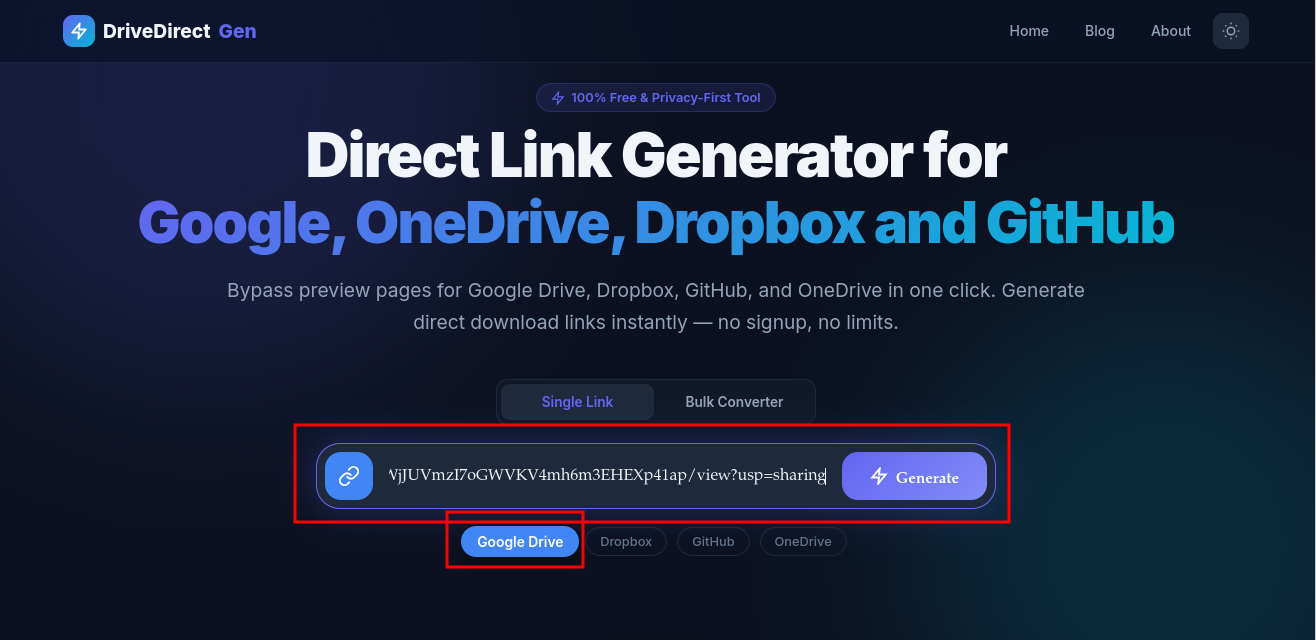
Paste. Generate. Copy. The OneDrive viewer is gone.
Manual method (what happens under the hood)
OneDrive share links can contain embed or redir. To force download you swap these to download and add ?download=1 if needed.
https://onedrive.live.com/embed?resid=FILE_ID
Becomes
https://onedrive.live.com/download?resid=FILE_ID&download=1
Our tool does this swap automatically and also handles the shorter 1drv.ms links.
Sharing a folder? Zip it first
OneDrive lets you share folders, but direct download of a whole folder is slower and sometimes blocked. Best practice: right-click the folder - Downloadto get a zip, upload that zip, then share and convert the zip link. It's faster for the recipient and less likely to hit limits.
Common problems and fixes
- “You don't have access”: Set access to Anyone with link (not “People in your org”).
- Preview page still appears: Check the link contains download not embed or redir.
- Large file throttling: Compress the file or share during off-hours; OneDrive may limit heavy traffic.
- Moved file: If you relocate the file, copy a fresh link and reconvert.
Use cases where direct links shine
- Classroom handouts: Students click once, download starts; no Microsoft account required.
- Client deliverables: Include the direct link in a button inside email or a landing page.
- Mobile sharing: Generate a QR in DriveDirect Gen so people can scan and download.
- App assets: Reference the link in scripts or CI jobs that fetch builds or datasets.
Embed the link in your site
Add the direct link to a download button:
<a href="YOUR_DIRECT_LINK" download class="btn">Download file</a>
Set the download attribute so browsers skip navigation and fetch immediately.
Testing checklist (do this before sharing)
- Test in an incognito window to confirm no sign-in prompts.
- Verify the URL contains download and download=1.
- Send to one friend; confirm it downloads on phone and desktop.
- If blocked, compress or split the file and retry.
Once it works, save the link in a note and reuse it. If you replace the file with the same name in OneDrive, re-share and reconvert to keep it valid.
Why OneDrive permissions need extra attention
Compared with public GitHub files or simple Dropbox shares, Microsoft sharing rules can be more sensitive to tenant settings, organization defaults, and sign-in state. That is why OneDrive links should always be tested from a private window before you publish them broadly. A link that works for you while signed in may still fail for an outside recipient.
This is also why teams often keep a public-facing fallback in Google Drive or Dropbox for important external deliveries. The file can still live in the Microsoft ecosystem, but a second host reduces stress when external permissions become complicated.
Rollout checklist for team sharing
- Confirm whether the audience is internal-only or fully public.
- Test download behavior on one desktop browser and one phone.
- Zip multi-file bundles before sharing when possible.
- Prepare a second direct link if the file will be opened by a large audience.
- Document the final link location so teammates are not copying the old share URL later.
A good OneDrive workflow is not complicated, but it does benefit from a little more discipline up front than the simpler public hosts.
When to use OneDrive as primary vs mirror
OneDrive works best as a primary host when the audience already lives in Microsoft 365 and the file belongs in that ecosystem. It works well as a mirror when the main public delivery is happening elsewhere, but you still want an internal or organization-friendly backup.
That primary-versus-mirror choice helps teams decide how much effort to put into permission testing, folder packaging, and public rollout details before sharing widely.
Takeaways
OneDrive direct links save clicks and prevent confused recipients. Use DriveDirect Gen for instant conversion, zip folders before sharing, and always test in incognito. Pair the link with a QR code for fast mobile access and add it to your site buttons for a clean download flow.
Related guides
- Create Dropbox direct links as mirrors alongside OneDrive.
- Craft Google Drive direct links when sharing outside Microsoft 365.
- Automate downloads with curl/wget using your OneDrive direct URLs.
- Add QR codes to your links for easy mobile access.