Print a QR, scan with a phone, and download instantly. Perfect for conference booths, classrooms, posters, and community meetups.
Why pair QR with direct links
QR codes remove typing and errors. When you encode a direct download link, people scan and immediately get the file - no preview pages, no “click here” confusion. This is ideal when you have a crowd and want zero friction.
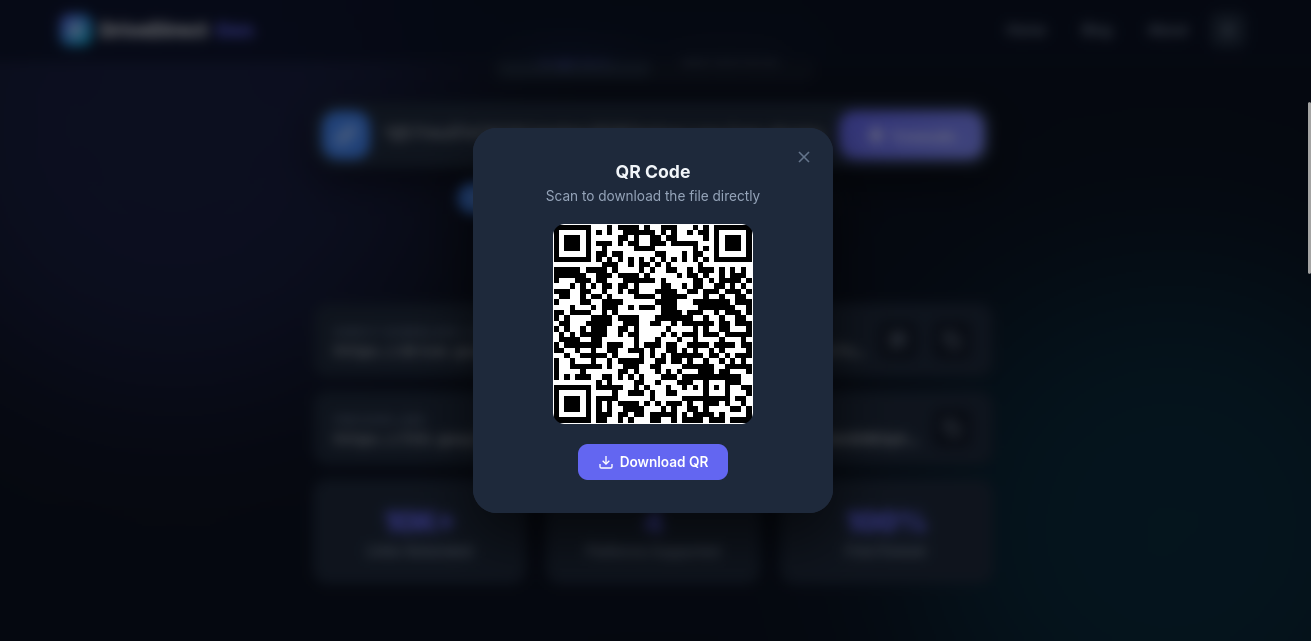
Add a short label so scanners know what they will get.
Steps to generate
- Convert your Google Drive or Dropbox share URL into a direct link using our direct link generator.
- After generating the direct link, simply click the QR Button right here on DriveDirect Gen.
- A QR code will be generated instantly for your download link. You can then download it as a PNG image.
- Print it on your poster, flyer, or slide deck.
Make it scannable in real life
- Size: at least 3 cm x 3 cm for handouts; 5-7 cm for posters.
- Contrast: dark code on light background scans fastest.
- Quiet zone: leave white space around the QR so cameras lock on.
- Test: scan from a few meters away if it is on stage slides.
What happens inside DriveDirect Gen before the QR appears
The QR feature is not a separate manual workflow. First, you paste a share URL into the relevant tool or the homepage generator, and the site converts that share URL into a clean direct download link. After that result is visible, you can use the built-in QR action on the result card. That means the QR is pointing to the finished direct download URL, not the messy preview link that would normally open a platform screen first.
This matters because the scan experience is only as good as the destination URL. If the destination still opens a preview page, the QR feels clumsy. If the destination is a real direct link from Google Drive, Dropbox, or another supported tool, the scan becomes far more useful in classrooms, booths, posters, and handouts.
Design better QR handouts and posters
A QR code works best when the surrounding copy reduces hesitation. Add a short headline, tell people what file they will receive, and mention the file type if it matters. “Scan to download the workshop PDF” performs better than a floating QR with no context. If the asset is large, say so. If the file opens fastest on mobile, say that too.
For printed material, keep the QR near the call to action instead of burying it in a corner. For stage slides, leave more white space than you think you need. For booth setups, combine the QR with a short fallback URL or a website button so people can still access the file if the room lighting is poor.
Common scan failures and how to avoid them
- The code is too small for the viewing distance.
- The destination URL still points to a preview page instead of a direct download.
- The poster has glare, low contrast, or insufficient white space around the code.
- The file host is throttled because too many people are opening it at once.
- The audience does not know what the scan will do, so they hesitate.
The easiest way to avoid these issues is to generate the direct link first, use the built-in QR feature second, and test the final scan from the same distance and lighting conditions your audience will actually use.
How to test a QR before you publish it
- Scan once from the device that created it.
- Scan again from a different phone on mobile data.
- Print or preview it at the final size before the event or class.
- Confirm the destination downloads immediately instead of opening a preview wall.
That short testing routine is usually enough to catch the biggest failures before the code reaches real users.
Why QR works so well with direct downloads
QR is valuable because it removes typing, but direct downloads are what remove the second layer of friction after the scan. Together, they create a one-step handoff that is ideal for posters, classroom slides, booth signage, and printed packets where speed matters more than browsing.
That is why the built-in QR option in DriveDirect Gen is useful: you first generate the download-ready URL, then turn that final result into a scannable action without rebuilding anything manually.
For real-world sharing, that combination is hard to beat because it removes both typing effort and preview-page friction in a single flow.
Classroom and Event Tips
If you are a teacher, put the QR code on the first slide of your presentation. Students can scan it as they walk in, and by the time you start, everyone has the worksheet on their device. For events, place the QR on your booth signage so you do not have to hand out expensive USB drives or printed packets.
You can also embed the same direct link in a website button for people who prefer tapping instead of scanning.