Paste a list of Google Drive, Dropbox, GitHub, or OneDrive links and convert them all at once. Great for teachers, teams, and makers who share many files in one go.
Why bulk conversion matters
Sharing ten different PDFs or videos one by one is boring. Manually editing each link is worse. A bulk direct link converter saves time, reduces mistakes, and gives you a single place to copy all the final URLs. It also keeps your audience happy because every link they click goes straight to download.
How to bulk convert in DriveDirect Gen
- Open DriveDirect Gen and switch to Bulk Converter.
- Paste one share link per line. You can mix Google Drive, Dropbox, GitHub, and OneDrive.
- Click Convert All. The tool auto-detects platforms, converts, and labels each result.
- Use Copy All to grab every direct link at once, or copy individual links with the copy icon.
- If you want QR codes, tap the QR button on any row.
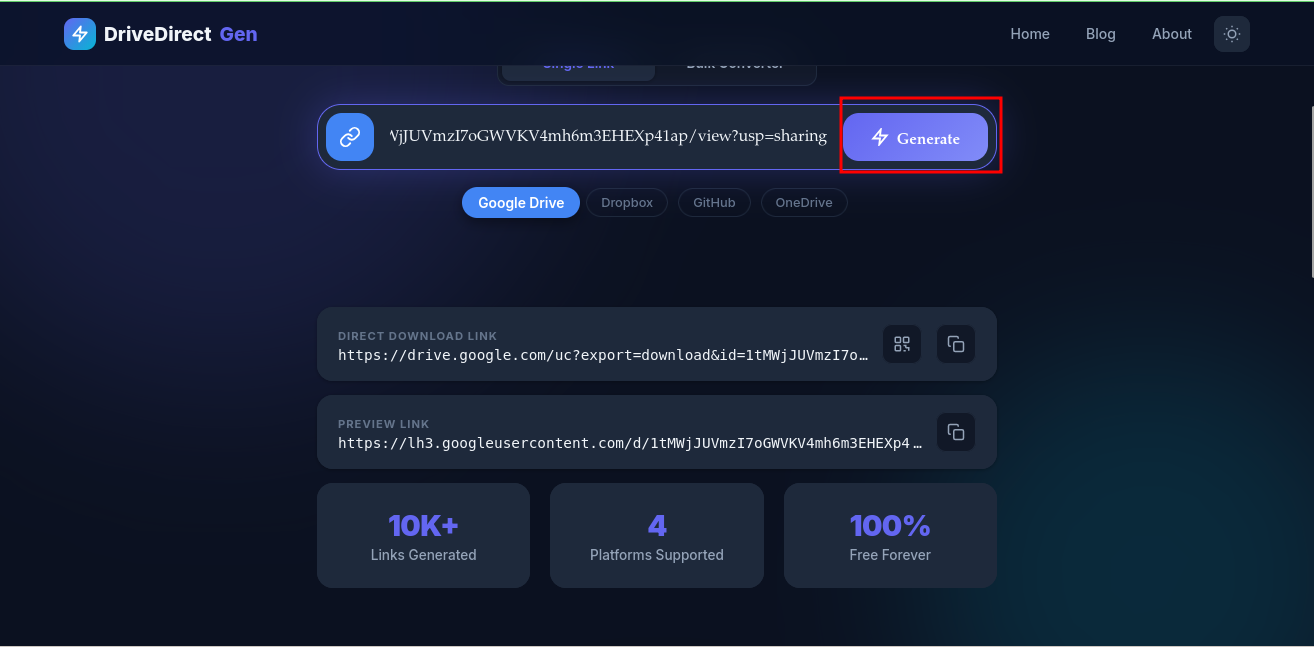
One click to convert many links. Platform tags keep things clear.
Formatting tips for clean input
- Place each link on its own line. Blank lines are ignored.
- Remove extra text like quotes or bullets before pasting.
- For Google Drive, ensure the file is shared to Anyone with the link first.
- For OneDrive, avoid links that include embed; the converter will swap to download but sharing must allow public access.
Sample input block you can reuse
https://drive.google.com/file/d/FILE_ID/view
https://www.dropbox.com/s/ABC123/report.pdf?dl=0
https://github.com/user/repo/blob/main/data/data.csv
https://1drv.ms/u/s!abcd1234
Paste something like this, click Convert All, and copy the results.
Use cases where bulk shines
- Classroom packs: Ten worksheets become ten direct downloads with one paste.
- Client deliverables: Send a list of videos or PDFs without preview pages slowing them down.
- Hackathon kits: Share datasets, slides, and starter code quickly to all participants.
- Content creators: Deliver bonus files to subscribers in a single email with clean links.
Common issues and quick fixes
- “No valid links found”: Check for typos and make sure each line is a full URL.
- Still seeing a preview page: Re-copy the converted link; confirm the domain changed (Drive - googleusercontent, Dropbox - dl.dropboxusercontent.com, GitHub - raw.githubusercontent.com, OneDrive - download).
- Permission blocked: Set sharing to Anyone with link on the original file.
- Large files throttled: Compress big videos or stagger downloads to avoid platform limits.
Organizing the output
After conversion, you can drop the results into a doc, email, or LMS. Add short labels so people know what each link contains. Example:
- Unit 1 Notes - direct link
- Project Brief PDF - direct link
- Starter Code ZIP - direct link
This reduces confusion and keeps clicks high.
Speed tricks
- Use the same list next semester: keep a text file of your share links, paste, convert, copy all.
- Group by platform if you need to rotate mirrors (for example, Drive plus Dropbox for heavy traffic).
- Pin the bulk converter page in your browser so you can reopen and paste fast.
Why this stays private
DriveDirect Gen converts links in your browser using JavaScript. We don't store or log your list. Close the tab and your clipboard is the only place the converted links live.
Plan batches by audience, not just by file type
The most useful bulk workflows usually group links by who will receive them. A teacher can keep one batch for students, another for substitute teachers, and another for parent downloads. A product team can keep one batch for customer onboarding, one for support docs, and one for internal QA assets. This sounds simple, but it makes copy, labeling, and version control much cleaner after conversion.
The same idea works across platforms. Maybe your primary files live in Google Drive, but heavier assets sit in Dropbox, code samples live in GitHub, and internal templates live in OneDrive. Bulk conversion is valuable because it removes the need to care about those different URL patterns while you assemble the final packet.
Quality control before you send the final list
- Open one link from each platform in a private window.
- Check that filenames look clean after download.
- Label mirrors clearly if two links point to the same asset.
- Add a short note if a file is large, mobile-heavy, or time-sensitive.
- Turn the most important downloads into a QR code when the audience may scan instead of type.
Bulk conversion is not just about saving clicks. It is about making a large set of file deliveries feel organized, predictable, and easy to reuse next week, next semester, or next launch.
Takeaway
Bulk conversion saves time and prevents mistakes when you share many files. Paste, convert, copy all, and you're done. Try it now in DriveDirect Gen and ship your next batch of links in minutes.
Related guides
- Fix Google Drive “quota exceeded” when a popular file throttles.
- Automate downloads with curl/wget after you bulk-generate links.
- Generate QR codes for your list to share at events or in class.
- Embed direct-download buttons on sites using the converted URLs.