Skip previews and deliver files instantly. Use the right URL formats for each platform and keep your audience focused on the content.
Why force download for visuals
Sometimes you want a user to download rather than view. Maybe it is a printable poster, a high-res logo pack, or a contract PDF they should save offline. Direct links guarantee the file downloads without a preview layer.
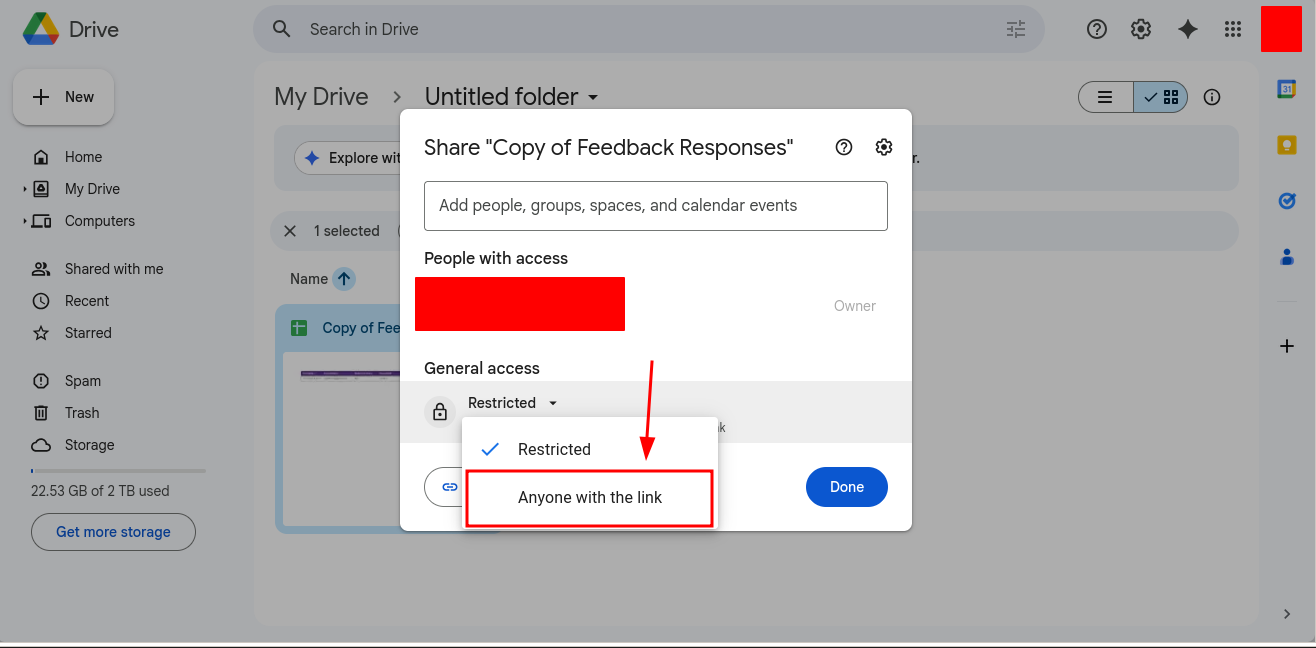
Direct links reduce friction when you want a file saved, not just viewed.
Get a direct link in DriveDirect Gen
- Open DriveDirect Gen.
- Paste your share URL (Google Drive, Dropbox, GitHub, or OneDrive).
- Click Generate Direct Link.
- Copy the output URL and use it in your buttons, emails, or embeds.
Platform-specific formats to know
- Google Drive: Preview links use /view. Direct links swap to uc?id=FILE_ID&export=download. DriveDirect Gen does this automatically.
- Dropbox: Share links end with ?dl=0. Direct links use dl=1 or the dl.dropboxusercontent.com domain.
- GitHub: Use raw.githubusercontent.com for images or PDFs stored in repos.
- OneDrive: Replace redir or embed with download. The generator handles the swap.
HTML snippet to trigger download
<a href="YOUR_DIRECT_LINK" download>Download the PDF</a>
The download attribute asks browsers to save instead of open. On iOS, behavior can vary, so test if you serve many mobile users.
Serving images as downloads
If an image keeps opening in a new tab, check the URL and add download to the anchor. For email campaigns, link the button to the direct URL - email clients ignore the download attribute but will still fetch the file immediately.
Keep file names clean
Users see the filename when downloading. Use names like brand-logo-pack.zip or course-handout-mar-2026.pdf. Avoid spaces and special characters to prevent URL encoding issues.
When to prefer previews
Previews help when you want a quick look without committing to download. If your goal is offline access, stick with direct links. If your goal is a quick view, keep the preview link and offer a secondary “Download” button with the direct link.
Permission reminders
- Share setting must be “Anyone with the link” for downloads to work broadly.
- If you revoke access, old direct links will fail - plan versioning if you update frequently.
- Do not share sensitive images or PDFs publicly; direct links are meant for content you are comfortable distributing.
Optional: add a checksum
For important PDFs or brand assets, publish a short checksum (SHA-256) next to the link. This helps people verify integrity when downloading from slow networks.
Which files benefit most from download-first delivery
Download-first links are most useful when the goal is ownership, not browsing. Contracts, printable worksheets, logo packs, invoices, slide decks, and press materials are all better when the user receives the file immediately. A preview page makes more sense for quick inspection, but it adds friction when the real task is saving the asset to a device.
The host matters too. Google Drive works well for school or team PDFs, Dropbox is convenient for polished client file delivery, GitHub is useful for repo-based images and docs, and OneDrive can fit Microsoft-centered organizations. The file type may be the same, but the surrounding workflow changes which tool feels cleaner.
Mobile and browser behavior to watch
- iPhone browsers may preview some PDFs before offering save options.
- Large image packs download more smoothly when zipped first.
- Messaging apps sometimes rewrite previews, so test shared buttons in the real channel.
- If the file must be obvious on posters or slides, pair it with a QR code.
The safe approach is simple: generate the direct link, test it on one phone and one desktop browser, then publish it with a clear button label. That extra check catches most problems before users ever see them.
How to publish download-first assets cleanly
If the file matters, do not drop a raw URL into a paragraph and hope for the best. Pair it with a visible button, a short label, and a note about file type. This is especially useful for image kits, PDF handouts, printable forms, and partner resources where the user should know what will happen after the click.
When the same asset must appear in email, LMS pages, and websites, keep one canonical direct link and reuse it everywhere. That creates a cleaner update path if the file ever changes later.
This is especially valuable for recurring resources like forms, brochures, image kits, and semester handouts that appear in more than one channel at the same time.
Takeaway
Direct download links are perfect when you want users to save a file. Convert the share URL with DriveDirect Gen, keep filenames clean, and add a simple download button. Your images and PDFs will land exactly where they should - on your audience's device.
Related guides
- Embed direct-download buttons to present these links cleanly on your site.
- Share downloads in Classroom and LMS platforms without previews.
- Turn your links into QR codes for posters, slides, and events.
- Fix Drive “quota exceeded” errors when a popular PDF or image gets throttled.